File permissions in Linux control who can read, write, or execute every file and directory on the system. Knowing how to change file permissions in Linux is not just a basic skill — it is the mechanism that keeps your data secure, prevents privilege escalation, and determines whether scripts run or silently refuse to execute. This guide covers the complete permissions system: reading the permission string, using chmod and chown, understanding numeric modes, and configuring umask for default permissions.
Understanding Linux File Permissions
Every file and directory in Linux has three permission sets assigned to three identity categories:
- Owner (user) — the account that created the file
- Group — users who share the group assigned to the file
- Others — everyone else on the system
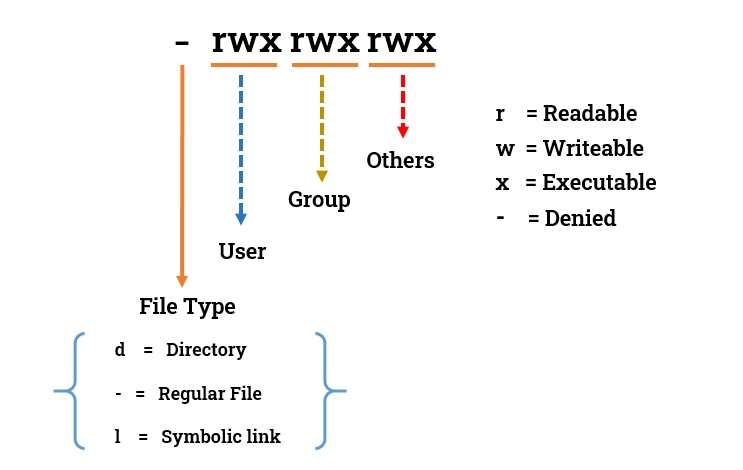
Each permission set includes three permission types: read (r), write (w), and execute (x). The ls -l command displays this information in a structured string:
-rwxr-xr-- 1 alice developers 4096 Apr 8 10:00 script.shBreaking this down:
| Field | Value | Meaning |
|---|---|---|
| File type | – | Regular file (d = directory, l = symlink) |
| Owner perms | rwx | Read, write, execute |
| Group perms | r-x | Read and execute, no write |
| Others perms | r– | Read only |
| Owner | alice | File belongs to alice |
| Group | developers | Group assigned to file |
Linux Permission Numbers Explained
The numeric (octal) permission system assigns values to each permission type: read = 4, write = 2, execute = 1. Add these values together for each identity category to get a three-digit octal code.
| Octal | Permissions | Meaning |
|---|---|---|
| 7 | rwx | Full access |
| 6 | rw- | Read and write |
| 5 | r-x | Read and execute |
| 4 | r– | Read only |
| 0 | — | No access |
So chmod 755 sets owner to rwx (7), group to r-x (5), and others to r-x (5). This is the standard permission for executables and public directories. chmod 644 sets owner to rw- (6), group to r– (4), and others to r– (4) — the standard for web-accessible files that should not be executable.
Using chmod to Change File Permissions
The chmod command (change mode) modifies permissions using either numeric or symbolic notation.
Numeric notation sets all three permission categories at once:
chmod 755 script.sh
chmod 644 config.txt
chmod 700 private_key.pem
Symbolic notation modifies specific permissions without affecting others. The operators are + (add), – (remove), and = (set exactly):
chmod u+x script.sh       # Add execute for owner
chmod g-w shared_file     # Remove write for group
chmod o= secret.txt       # Remove all permissions for others
chmod a+r public.html     # Add read for all (user, group, others)
To apply permissions recursively to a directory and everything inside it, use -R:
chmod -R 755 /var/www/htmlUse the recursive flag with care. Applying execute permission recursively to a web directory, for example, creates security risks if it applies to files that should not be executable.
chown Linux: Changing File Ownership
Changing file permissions only matters if ownership is set correctly. The chown command (change owner) sets both the user and group that own a file:
sudo chown alice file.txt           # Change owner only
sudo chown alice:developers file.txt  # Change owner and group
sudo chown :developers file.txt     # Change group only
The chgrp command offers a dedicated way to change only the group:
sudo chgrp developers /var/www/htmlLike chmod, chown accepts a -R flag for recursive changes:
sudo chown -R www-data:www-data /var/www/htmlThis pattern — setting the web root to be owned by the web server user — is a standard step when deploying web applications. The web server needs write access to upload directories, but configuration files should remain owned by a non-web-server account to prevent modification if the application is compromised.
Ownership and permissions work together with the execution environment on the system. If you are running applications that need to interact with the Windows partition or dual-boot environment, the guide on how to run Windows apps on Linux explains how file system ownership differences between NTFS and ext4 affect cross-platform access.
Understanding umask: Default Permissions for New Files
When you create a new file, Linux does not apply permissions arbitrarily — it subtracts the umask value from a base permission to determine the default. For files, the base is 666 (rw-rw-rw-). For directories, the base is 777 (rwxrwxrwx).
With the default umask of 022:
- New files get 666 – 022 = 644 (rw-r–r–)
- New directories get 777 – 022 = 755 (rwxr-xr-x)
View the current umask with:
umaskSet a more restrictive umask for sensitive environments — 027 removes group write and all other permissions from new files:
umask 027Place this in ~/.bashrc or /etc/profile to make it persistent. Servers handling sensitive data benefit from a umask of 027 or 077, ensuring new files are not world-readable by default.
Special Permission Bits: SUID, SGID, and Sticky Bit
Three additional permission bits go beyond the standard rwx model:
SUID (Set User ID) — when set on an executable, it runs with the owner’s privileges instead of the caller’s. The passwd command uses SUID to let regular users write to /etc/shadow. Set it with chmod u+s or chmod 4755.
SGID (Set Group ID) — on a file, it runs with the group’s privileges. On a directory, new files created inside inherit the directory’s group rather than the creator’s primary group. Set it with chmod g+s or chmod 2755.
Sticky Bit — on directories, it prevents users from deleting files they do not own, even if they have write permission to the directory. /tmp uses the sticky bit. Set it with chmod +t or chmod 1777.
Practical Permission Patterns for Common Scenarios
Web Server Files
sudo chown -R www-data:www-data /var/www/html
sudo find /var/www/html -type f -exec chmod 644 {} \;
sudo find /var/www/html -type d -exec chmod 755 {} \;
This sets files to 644 and directories to 755 separately, avoiding the mistake of making all files executable.
SSH Private Keys
chmod 600 ~/.ssh/id_ed25519
chmod 644 ~/.ssh/id_ed25519.pub
chmod 700 ~/.ssh/
SSH strictly enforces these permissions and refuses to use a private key file that is readable by other users.
Shared Project Directories
sudo chown -R :developers /opt/project
sudo chmod -R 2775 /opt/project
SGID (2) ensures new files inherit the developers group. The 775 lets group members write while keeping others to read-only access.
Working with file permissions on lightweight or older hardware requires the same understanding regardless of distribution. The best 32-bit Linux distros guide covers systems where careful permission management is especially important for multi-user setups.
Auditing Permissions with find
The find command is the most effective tool for auditing permissions across a directory tree:
find /var/www -perm -o+w -type f   # World-writable files
find / -perm -4000 -type f 2>/dev/null  # SUID executables
find /home -name "*.sh" ! -perm 700    # Shell scripts with loose permissions
Running a SUID audit periodically helps catch unexpected privilege escalation vectors. Any SUID binary that is not part of the standard system installation deserves immediate investigation.
The Linux permissions system rewards users who understand it fully and punishes those who apply chmod 777 as a quick fix. Get ownership and permissions right, and your system becomes significantly harder to compromise. Get them wrong, and the most robust application cannot compensate for the underlying access control failures.