The docker image vs container distinction trips up nearly everyone who is new to containerization. The two terms appear everywhere in Docker documentation, tutorials, and error messages — often without a clear explanation of how they relate. Understanding the difference is not just academic: it directly affects how you build, ship, and debug containerized applications.
This article breaks down exactly what each concept means, how Docker works internally, and where containers stand compared to virtual machines.
How Docker Works: The Core Idea
Docker is a platform for packaging applications and their dependencies into isolated, reproducible units that run the same way on any machine. The central promise of Docker is eliminating the “works on my machine” problem — if it runs in a container on your laptop, it runs identically on a server or in a CI/CD pipeline.
Docker achieves this through two key concepts that are often confused but serve completely different purposes: images and containers.
What Is a Docker Image
A Docker image is a read-only template that contains everything an application needs to run: the operating system base layer, runtime, libraries, configuration files, and application code. Think of it as a snapshot — a frozen, immutable blueprint.
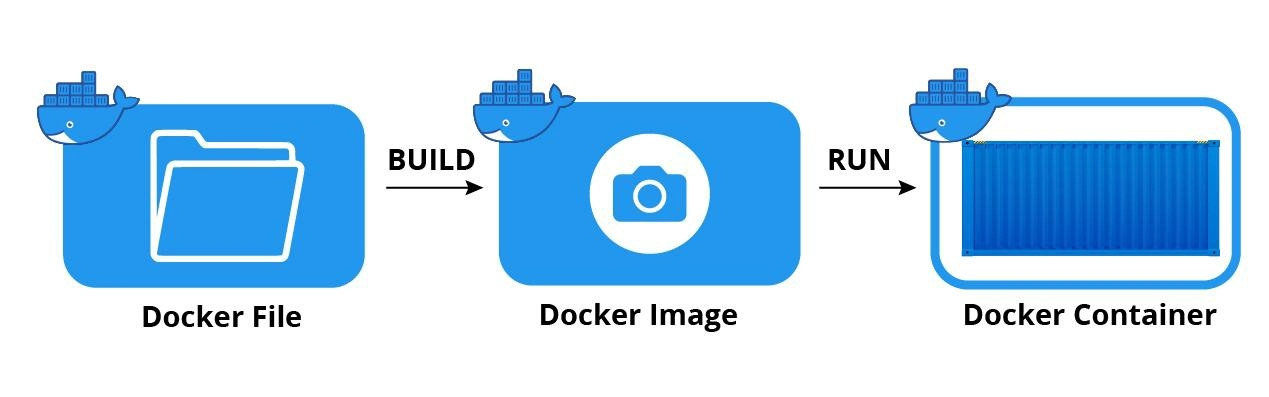
Images are built from a Dockerfile, which is a plain text file containing a series of instructions. Each instruction creates a new layer in the image, and Docker caches these layers for efficiency. A typical image might start from an official Ubuntu base, add Python, copy in application code, and specify a startup command:
FROM ubuntu:22.04
RUN apt-get update && apt-get install -y python3
COPY app.py /app/
CMD ["python3", "/app/app.py"]
Images are stored in registries. Docker Hub is the default public registry, but private registries are common in production environments. The image itself never runs — it only exists as a template for creating containers.
What Is a Docker Container
A container is a running instance of an image. When you execute docker run, Docker takes the image, adds a thin writable layer on top of its read-only layers, and starts the process defined in the image. Multiple containers can run from the same image simultaneously, and each gets its own isolated writable layer.
That writable layer is ephemeral. When the container stops and is removed, any data written to it disappears unless you explicitly mount a volume to persist it outside the container.
| Aspect | Docker Image | Docker Container |
|---|---|---|
| State | Static, read-only | Dynamic, running |
| Storage | Registry or local disk | Memory + writable layer |
| Lifecycle | Created once, reused | Created, started, stopped, removed |
| Quantity | One per definition | Many per image |
| Data persistence | Yes (immutable) | No (unless volume mounted) |
Docker vs Virtual Machine: Where Containers Fit
The docker vs virtual machine comparison comes up constantly, and the distinction matters for deciding which tool fits a given workload.
Virtual machines include a full guest operating system kernel, managed by a hypervisor sitting between the hardware and the OS. This gives strong isolation but carries significant overhead — a VM might consume 1–2 GB of RAM before your application even starts.
Containers share the host operating system kernel. Docker uses Linux kernel features — namespaces for process isolation and cgroups for resource limits — to create lightweight, isolated environments. A container running a simple web application might use 30 MB of RAM versus several hundred MB for an equivalent VM.
The tradeoff is isolation depth. Containers share the kernel, so a kernel-level vulnerability affects all containers on that host. VMs with separate kernels provide stronger security boundaries. For most web applications and microservices, containers offer the right balance of efficiency and isolation. For workloads with strict compliance requirements or untrusted code execution, VMs remain the stronger choice.
How to Run a Docker Container in Practice
Before running containers, Docker must be installed. On Ubuntu, the official installation path goes through Docker’s own repository rather than the default apt packages, which tend to be outdated. The Docker documentation provides the current installation script.
Once installed, pull an image from Docker Hub and run a container:
docker pull nginx:latest
docker run -d -p 8080:80 --name my-nginx nginx:latest
The -d flag runs the container in detached mode (background). The -p flag maps port 8080 on your host to port 80 inside the container. The –name flag assigns a human-readable name for easier management.
Managing Running Containers
The docker ps command lists all running containers with their IDs, names, status, and port mappings. To see stopped containers as well, add the -a flag.
Common management commands:
- docker stop my-nginx — gracefully stops the container
- docker start my-nginx — starts a stopped container
- docker rm my-nginx — removes a stopped container
- docker logs my-nginx — shows stdout/stderr output from the container
- docker exec -it my-nginx bash — opens an interactive shell inside a running container
The exec command is particularly useful for debugging. It lets you inspect the container’s filesystem, check environment variables, and run diagnostic commands without stopping the service.
Docker Tutorial for Beginners: Building Your Own Image
Understanding docker containers is most useful once you build an image yourself. The process makes the image-to-container relationship concrete.
Create a directory with a simple application file and a Dockerfile:
mkdir my-app && cd my-app
echo "Hello from Docker" > index.html
Write a Dockerfile that serves this file with nginx:
FROM nginx:alpine
COPY index.html /usr/share/nginx/html/
Build the image and tag it with a name:
docker build -t my-app:1.0 .Docker processes each Dockerfile instruction and reports which layers it builds versus which it pulls from cache. Run a container from your new image:
docker run -d -p 8080:80 my-app:1.0Open a browser to http://localhost:8080 and you will see your index.html served from inside the container. This simple exercise illustrates the full image-to-container workflow in under five minutes.
For teams running containerized applications on a full stack, the LEMP stack installation guide covers how to deploy Linux, Nginx, MySQL, and PHP in a production-ready configuration that integrates well with Docker-based workflows.
Docker Compose and Multi-Container Applications
Real applications rarely consist of a single container. A typical web application needs at minimum an application server and a database — often also a cache layer, a queue, and a reverse proxy. Managing these individually with docker run commands becomes unworkable fast.
Docker Compose solves this with a YAML file that defines all services, their images, environment variables, volume mounts, and network connections in one place. A docker compose up command starts the entire stack. A docker compose down tears it down cleanly.
services:
  web:
    image: nginx:alpine
    ports:
      - "80:80"
  db:
    image: postgres:15
    environment:
      POSTGRES_PASSWORD: secret
This declarative approach makes multi-container applications reproducible and easy to hand off between team members.
If you are evaluating Linux distributions for running Docker in a server environment, the comparison in the best lightweight Linux distros guide covers which distributions offer the best balance of minimal footprint and package availability for containerized workloads.
What Comes Next After the Basics
Docker images and containers are the foundation, but the ecosystem extends well beyond them. Docker volumes handle persistent data across container restarts. Docker networks allow containers to communicate with each other while remaining isolated from the host. Container registries like Docker Hub, GitHub Container Registry, and self-hosted options manage image distribution across teams and environments.
For production deployments, orchestration tools like Kubernetes manage scheduling, scaling, health checks, and rolling updates across clusters of containers. Understanding images and containers thoroughly makes the step into Kubernetes significantly less disorienting.
The distinction between a Docker image and a container is simple once you internalize it: the image is the recipe, the container is the meal. One is static and reusable, the other is a live process that exists only as long as it is running.