Linux gaming has undergone a genuine transformation over the past several years. What was once a niche pursuit requiring significant technical skill and patience has become a realistic daily driver for thousands of PC gamers. The release of the Steam Deck — running a custom Linux distribution — forced compatibility improvements that now benefit desktop Linux users directly. Understanding how the technology works and which setup gives you the best results makes the difference between a frustrating experiment and a capable gaming platform.
What Is Proton and How Does It Work
Proton is a compatibility layer developed by Valve that allows Windows games to run on Linux. It is built on top of Wine, an open-source implementation of the Windows API, but adds significant improvements: DXVK for translating Direct3D 9/10/11 calls to Vulkan, VKD3D-Proton for Direct3D 12, Steam Linux Runtime for a consistent library environment, and Steam Play integration that makes enabling it as simple as checking a box.
The key insight is that Proton is not emulation. It translates Windows API calls into Linux equivalents in real time. The game’s code runs natively on your CPU — there is no performance penalty from simulating a different processor architecture. The overhead comes from API translation, and modern Proton versions have reduced this to the point where many games run at near-identical or sometimes better performance than on Windows, particularly with AMD GPUs where the open-source AMDGPU driver often outperforms Windows drivers.
Steam Proton vs Wine: What Is the Difference
Proton vs Wine is a question that comes up constantly among new Linux gamers. Wine is the foundational open-source project that implements Windows API compatibility. It handles simple applications and older games well, but requires significant manual configuration for modern titles.
Proton takes Wine as a base and wraps it with everything needed for gaming: the DXVK and VKD3D-Proton graphics translation layers, Steam Integration for DRM handling, Esync and Fsync for reducing CPU overhead from synchronization primitives, and a curated set of game-specific patches. The result is a gaming-focused compatibility layer that handles most modern titles automatically, without the manual tweaking Wine requires.
| Feature | Wine | Proton |
|---|---|---|
| Vulkan/DXVK support | Manual setup | Built-in |
| DirectX 12 | Limited | Full via VKD3D-Proton |
| Esync/Fsync | Manual | Enabled by default |
| Game-specific patches | Rare | Regular updates |
| Non-Steam games | Yes | Via Bottles or Heroic |
Best Linux Distro for Gaming
The distribution you run matters for gaming, primarily because driver access, kernel version, and update cadence affect GPU performance and compatibility.
Ubuntu for Gaming
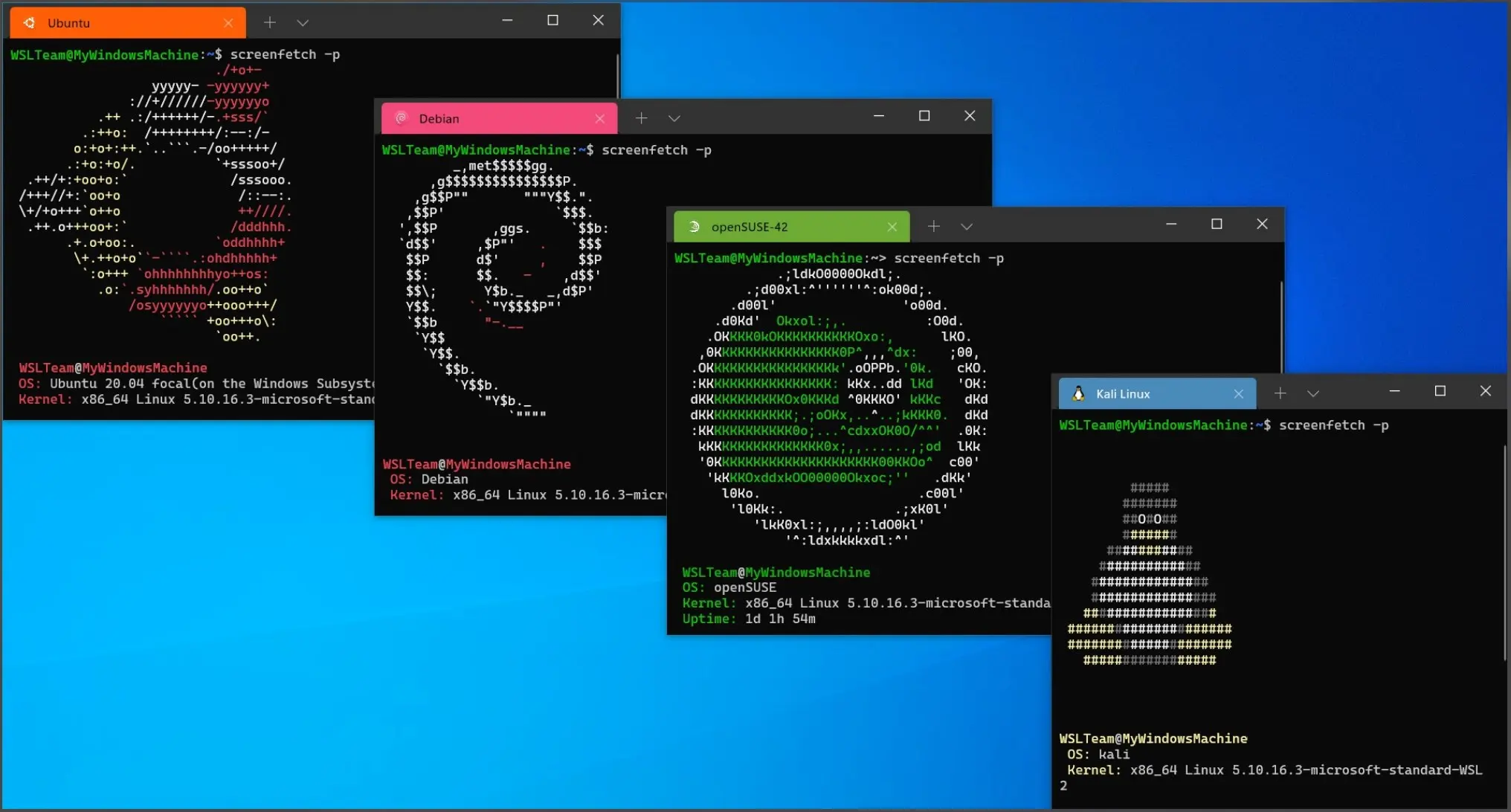
Ubuntu is the default recommendation for newcomers to Linux gaming because of its wide hardware support, massive documentation base, and long-term support releases. The Ubuntu-based experience is stable and well-tested, though the default kernel and Mesa versions are sometimes behind the cutting edge. The Ubuntu overview covers what makes it a solid foundation for both gaming and everyday use.
For gaming specifically, Ubuntu users often add PPAs like oibaf or kisak-mesa to get newer Mesa drivers without switching distributions.
Manjaro for Gaming
Manjaro is an Arch-based distribution with a friendlier interface and a reputation among Linux gamers for keeping packages up to date. The rolling release model means you get the latest Mesa, kernel, and Proton releases quickly, which matters for newer titles with fresh compatibility fixes. The trade-off is that rolling releases occasionally introduce regressions. The Manjaro overview explains its approach to balancing Arch’s freshness with practical usability.
Other strong options include Nobara Linux (a Fedora fork specifically optimized for gaming), Garuda Linux (Arch-based with performance tuning built in), and Pop!_OS (Ubuntu-based with excellent Nvidia driver support out of the box).
How to Play Windows Games on Linux
Playing Windows games on Linux through Steam is straightforward. Open Steam Settings, navigate to Steam Play, and enable “Enable Steam Play for all other titles.” Set the Proton version to Proton Experimental or the latest numbered release.
From this point, any Windows game in your library installs and runs through Proton automatically. Check compatibility before purchasing a title at ProtonDB (protondb.com), a community database where players report their experience with specific games. A “Platinum” rating means the game runs flawlessly out of the box. “Gold” means it works with minor tweaks. “Borked” means significant issues remain.
Running Non-Steam Windows Games
Epic Games, GOG, and other storefronts are accessible through Heroic Games Launcher, an open-source client that handles Wine/Proton management automatically. Bottles is an alternative that creates isolated Wine environments for different applications and games, making it easy to maintain separate configurations for titles with conflicting requirements.
For older games from platforms like itch.io or direct downloads, Lutris is the most comprehensive solution. It provides install scripts maintained by the community that configure Wine, DXVK, and game-specific settings automatically.
The guide on how to run Windows apps on Linux covers the broader ecosystem of Windows compatibility tools that apply to both gaming and productivity applications.
GPU Drivers: The Most Important Variable
GPU driver choice and configuration have more impact on Linux gaming performance than almost any other factor.
For AMD GPUs, the open-source AMDGPU driver is built into the kernel and requires no manual installation. It supports Vulkan through Mesa’s RADV driver, which is actively developed and often competitive with AMD’s proprietary Windows driver. For the best performance, install the latest Mesa from a PPA or use a rolling release distribution.
For Nvidia GPUs, the proprietary driver is required for gaming performance. Install it through your distribution’s package manager rather than downloading from Nvidia’s website — package manager installation integrates correctly with the kernel module system and survives kernel updates:
sudo apt install nvidia-driver-545After installation, verify the driver is active:
nvidia-smiNvidia’s open-source kernel module (different from the fully open-source Nouveau driver) became production-ready for Turing and newer architectures. Check your distribution’s documentation for how to enable it.
Anti-Cheat: The Remaining Limitation
The most significant remaining barrier to Linux gaming is anti-cheat software. Many competitive multiplayer games use kernel-level anti-cheat systems (Easy Anti-Cheat, BattlEye) that require Windows-specific kernel features that Proton cannot replicate.
The situation has improved substantially. Easy Anti-Cheat and BattlEye now both provide Linux-compatible runtimes, but individual game developers must opt into enabling them. Apex Legends and most Fortnite modes run on Linux. Some titles with these anti-cheat systems still require Windows.
Before installing a competitive multiplayer title, check ProtonDB and the game’s support forums for current anti-cheat status. The situation changes frequently as developers update their anti-cheat configurations.
Performance Tuning for Linux Gaming
A few system-level adjustments improve gaming performance across all titles:
GameMode is a daemon from Feral Interactive that applies CPU governor changes and process priority adjustments when a game is running. Install it with sudo apt install gamemode and prefix game launches with gamemoderun.
MangoHud is an in-game overlay that shows FPS, GPU usage, CPU usage, frame times, and temperatures. It is the Linux equivalent of MSI Afterburner’s overlay and essential for diagnosing performance issues:
sudo apt install mangohudLaunch games with MANGOHUD=1 as an environment variable prefix, or enable it through Steam’s launch options with the gamemoderun %command% pattern.
The vm.swappiness kernel parameter affects how aggressively Linux uses swap memory. Setting it lower (10–15) keeps game data in RAM longer:
sudo sysctl vm.swappiness=10Linux gaming is no longer a compromise for most single-player and cooperative titles. The combination of Proton’s maturity, community tooling like ProtonDB and Heroic, and the performance improvements driven by Steam Deck development has made Linux a genuinely capable gaming platform for the majority of popular games.